Table of Contents
Struggling to know what visitors do after landing on your website? Google Analytics event tracking uncovers actions like clicks, form drop-offs, downloads, and video views—helping you fix weak spots, boost conversions, and grow smarter.
What Is Google Analytics Event Tracking?
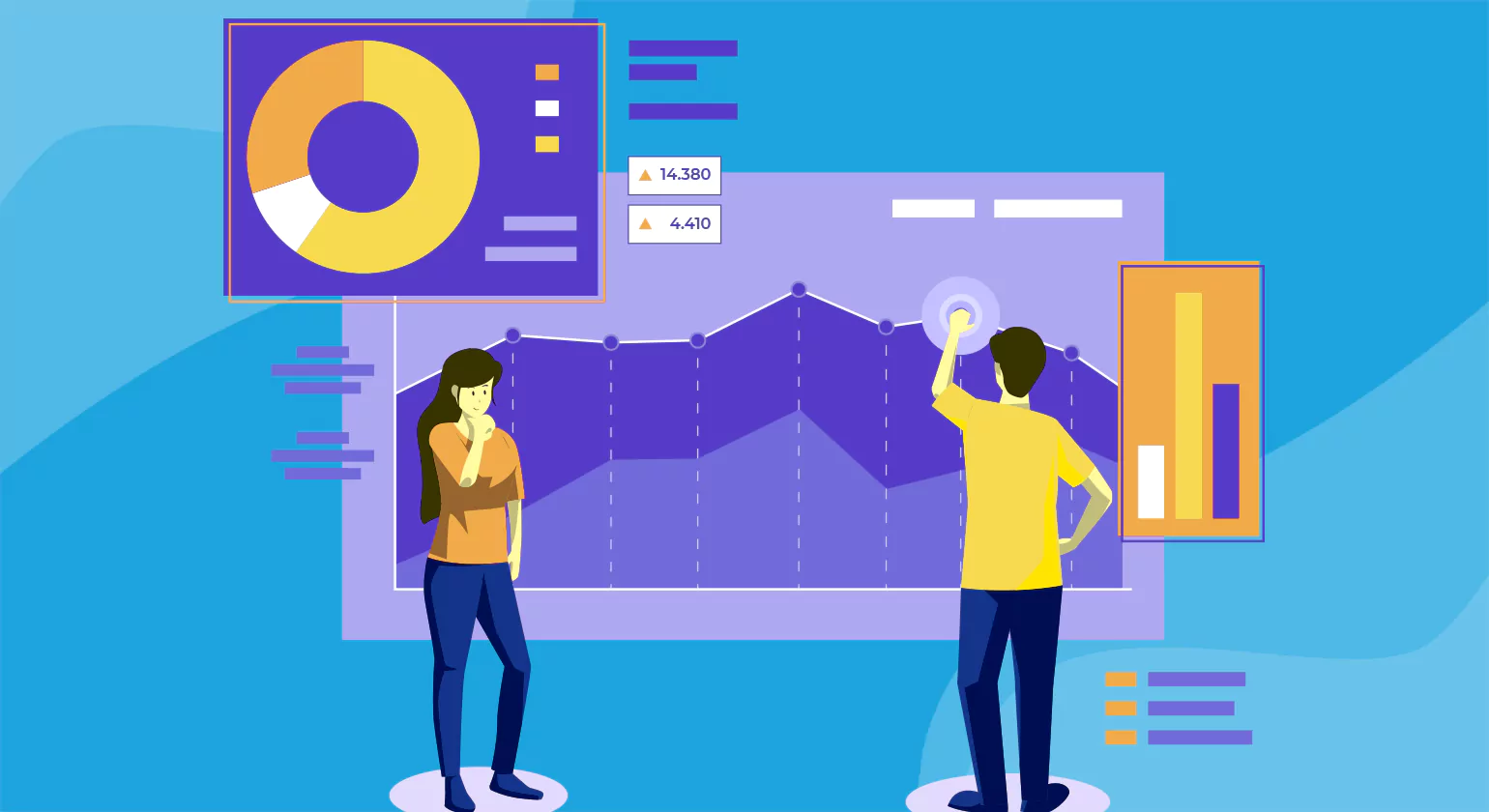
The Google Analytics Events Tracking allows for the understanding of how people have been using your site. The new GA4 version in 2026 will not use session tracking anymore; it will track only events. All activities are tracked through events.
How Google Analytics Event Tracking Works
Category of Event: This is the generic name for the category, like “Social Media” or “Videos”.
Action of the Event: This refers to what exactly the individual did; for example, “Click”, “Play”, or “Submit”.
Event Label: This gives additional information like the precise name of the blog or video post.
Event Value: This usually refers to the numeric value of each event; the signup form could be valued at 10.
Event-Based Tracking in GA4
GA4 replaces the old category system with a more flexible model. Instead of just four parts, you can now use Event Names and Parameters. This allows you to attach up to 25 unique details to every action a user takes on your site.
What Are Key Events in Google Analytics?
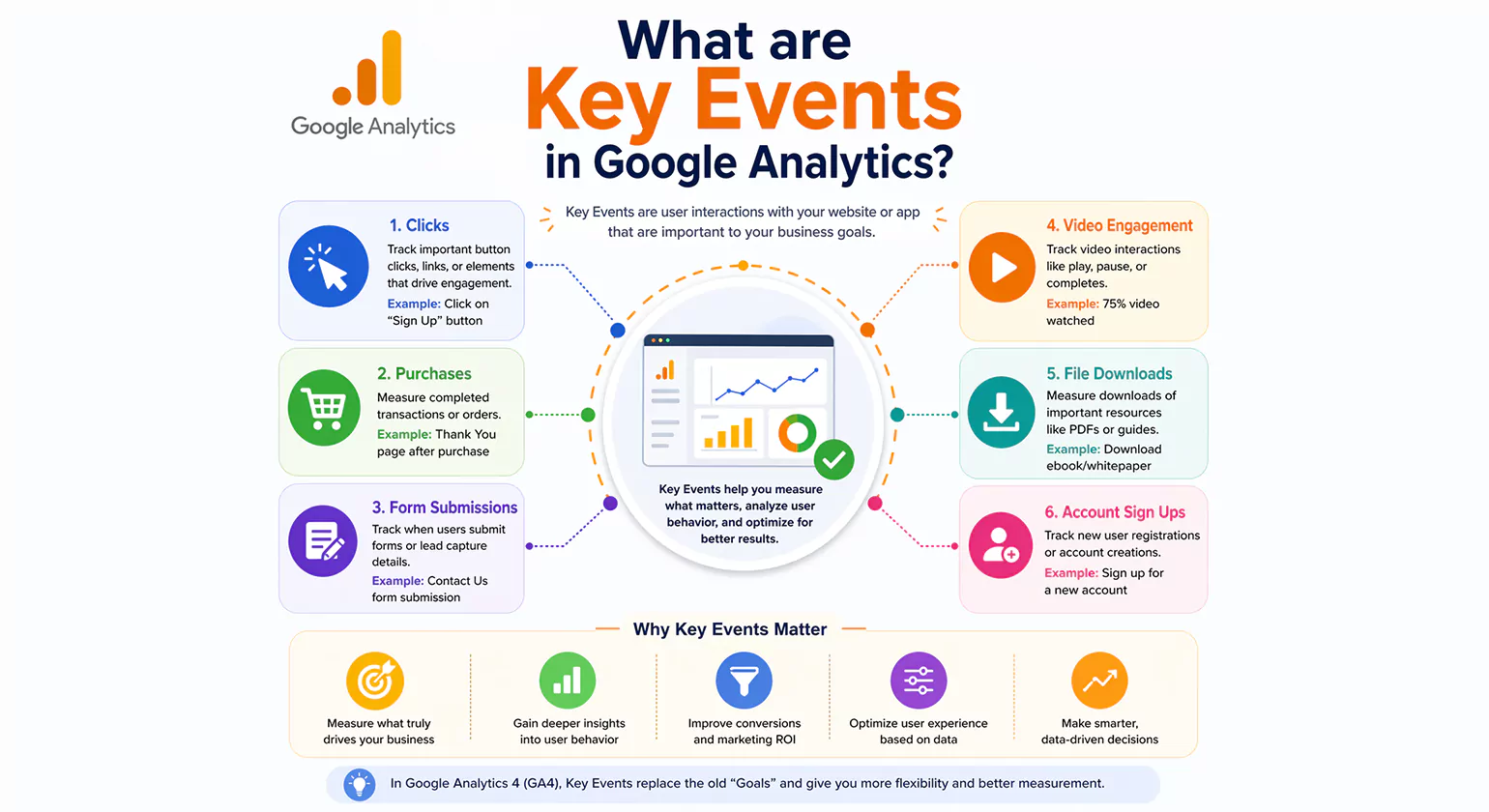
Google Analytics Event Tracking (GA4) is the most important action users take on your website. In the past, Google called these “conversions”. They show you how well your site meets your business goals. In 2026, businesses track many types of actions to measure success.
- Purchases: When the client purchases something and performs an action on your website checkout.
- Forms Submission: When the user fills out the contact or lead form submission.
- Newsletters: Each and every one of them who sign up for your newsletters or join your mailing list.
- App Installation: When the user installs your application on their mobile device.
- Button Click: Button click for call-to-action buttons like “Call Now” or “Book a Demo”.
- Video View: User viewing more than 75 per cent of your product video.
Why should you track key events?
Save Money on Ads: You can link these events to Google Ads. This helps you spend more on the users who are likely to buy.
Find Top Channel: You can see if your traffic comes from Search, Social Media, or Email.
Fix Your Funnel: It helps you identify which page users exit from before taking a desired action on your website.
How to Implement Event Tracking in Google Analytics (GA4): Complete Guide
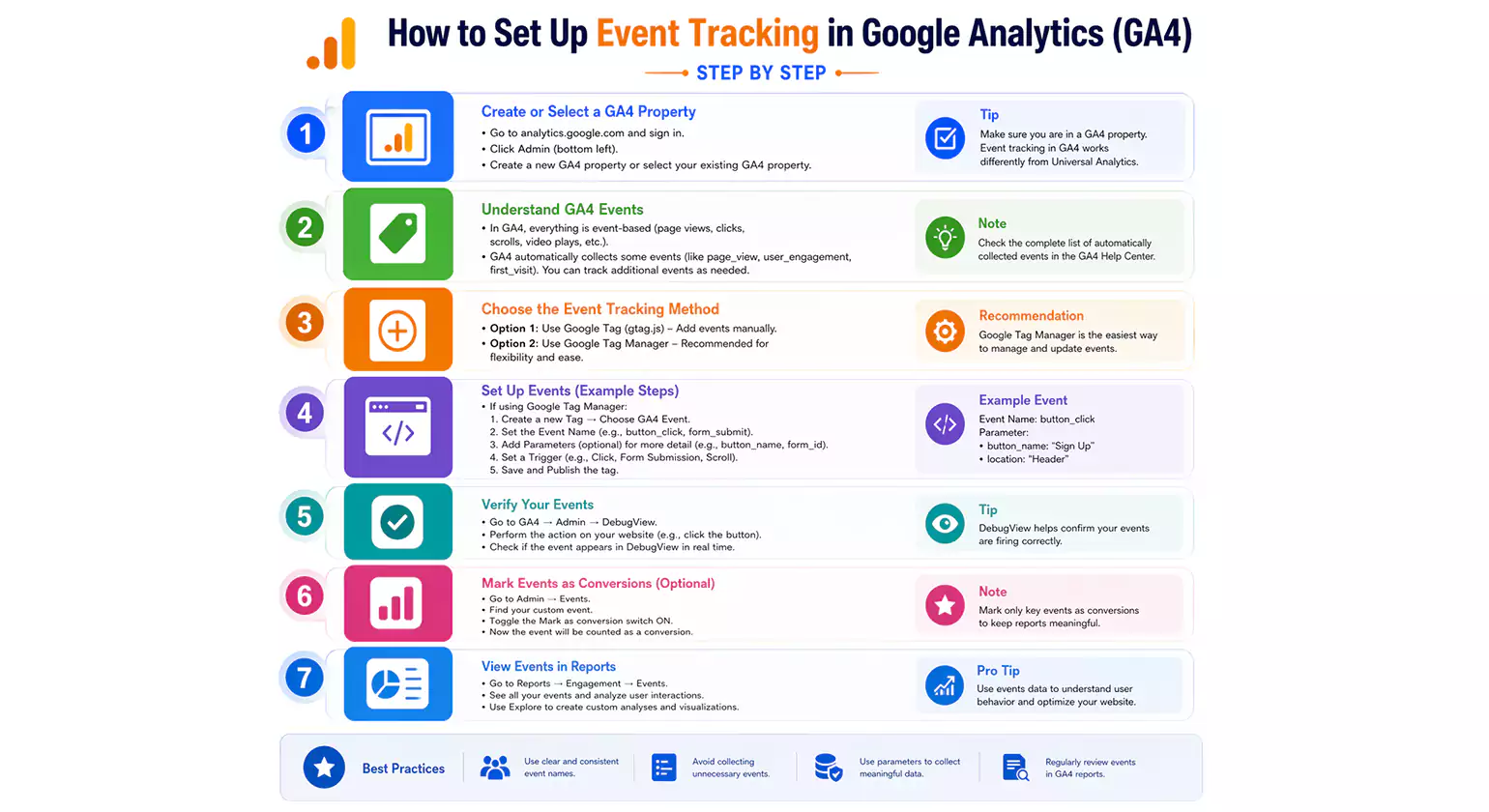
Event tracking setup in GA4 enables you to understand the behaviors of your website users. By 2026, with the help of AI technologies in GA4, the process becomes easier.
1. Create Your GA4 Property
The foundation of your tracking begins in the Google Analytics Admin panel. You must create a web data stream to receive your website data.
- Action: Go to Admin > Data Streams and add your site.
- Key Detail: Copy your measurement ID (G-XXXXXXXXXX). You will use this ID to connect your site to Google.
- Definition: A GA4 Property holds your data. A data stream is the actual source, like your website or mobile app.
2. Enable Enhanced Measurement
Google Analytics Event Tracking GA4 can track common actions automatically. This feature is called Enhanced Measurement. In 2026, it now detects form fills and scroll depth more accurately.
- Steps: In your Data Stream settings, turn on Enhanced Measurement.
- Auto-Events: This tracks file downloads, outbound clicks, and site searches instantly.
- Pro Tip: Ensure that the search terms on your website match those configured within GA4 to keep the data consistent.
3. Set Up Custom Events in GTM
Use Google Tag Manager (GTM) for tracking some types of behaviors, such as clicking the “Contact Us” button.
- Variables: “Click Text” and “Click URL” must be enabled in GTM.
- Trigger: Set up a trigger that is activated when a particular button click occurs.
- Tag: Create a GA4 event tag by giving it a simple name, for example, “button_click”.
- Quote Sentence: “Google Tag Manager is the intermediary for GA4 where all tracking codes get collected at one single point.”
4. Test with DebugView
Always test your tags before you publish them. Use the DebugView tool in GA4 to see live data from your device.
- Testing: Click Preview in GTM to launch the Tag Assistant. This automatically appends a debug_mode=true parameter to your URL.
- Verify: Go to Admin > DebugView in GA4.
- Check: Trigger the actions on your site and wait 10–20 seconds. Ensure the event appears with the correct parameters (e.g., link_url or page_location).
5. Mark Events as Conversions
Google Analytics Event Tracking In 2026 GA4 uses key events to track your most important goals, like sales or leads.
- Process: Navigate to Admin > Data Display > Events.
- Toggle: Find your event and switch on Mark as a key event.
- Result: These events will now appear in your acquisition and conversion reports, allowing you to see which channels drive the most valuable actions.
6. Analyse Reports for Growth
Google Analytics event tracking is only useful if you use the data. Use the Exploration tool in GA4 to see the exact path users take before they make a purchase.
- Key Report: Use the Path Exploration report to find where users “drop off” or get stuck in your sales funnel.
- Predictive Metrics: In 2026, look at the Purchase Probability metric. This tells you which groups of users are most likely to buy based on their recent events.
- Definition: Path Exploration is a visual report that shows the sequence of events users perform on your website.
Most Common GA4 Event Tracking Errors and How to Fix Them

1. Events Missing from Reports
There is an expected delay in the case of any newly implemented events in your reporting systems. The delay of GA4 event tracking to show results in your main interface is about 24 to 48 hours. It gives you an idea how long you will have to wait for processing your information.
- The Fix: Check the real-time report or DebugView first.
- The Goal: If you see data there, your tags are working. You just need to wait for the daily update.
- Definition: Data processing is the time GA4 takes to turn raw hits into readable reports.
2. Fix Duplicate Event Tracking
When duplicate data is involved, there are multiple instances where the same trigger event takes place due to one user’s action. The problem of double counting usually arises if your triggers are defined too widely, as this will result in Google treating one action as several occurrences.
- The Fix: In Google Tag Manager (GTM), set your “tag firing options” to Once per event.
- Search for Errors: Use the Google Tag Assistant to see if your Measurement ID is loading twice on your site.
3. GTM Triggers Not Firing
Triggers usually fail because they are too specific. If a website update changes a button’s CSS class, your trigger might break. When this occurs, GA4 will fail to record any data for that specific action until the trigger is updated.
- The Fix: Use Preview Mode in GTM to find the exact error.
- Best Practice: Use stable markers like Click URL or Form ID instead of classes that change often.
4. Key Events Not Recording
If an action appears in your regular reports but is not showing up as a key event, you should check your admin settings. In Google Analytics event tracking most actions are tracked as standard events first. You must manually tell the system which specific events are important enough to be labelled as a conversion.
- The Fix: Go to Admin > Data Display > Events. Make sure the toggle for Mark as the key event is blue.
- Quotable Sentence: “GA4 requires you to register events in the admin panel before they can count toward your conversion goal.”
Best Tools for Google Event Tracking

The ideal tracking stack would include GA4 as our top choice to collect data and GTM for tagging. With the help of behavioral analysis tools like Mixpanel and Hotjar, we will have information regarding why and how the users decided to purchase our products
1. Google Analytics 4 (GA4)
GA4 is the main tool for tracking sales and website traffic. In 2026 Google Analytics event tracking uses AI-driven summaries to predict users’ behaviour. It can even tell you which users are likely to leave your site soon.
Best For: Measuring marketing results and general website traffic.
New in 2026: It now tracks form fills and page scrolling automatically.
Definition: GA4 is an analytics platform that tracks every user action, like clicks and views, as an “event”.
2. Google Tag Manager (GTM)
GTM is an application where one can inject tracking code without altering their site’s code. The GTM came up with a new gateway in 2026 that protects users’ data.
Best For: Teams that need to add new events, like a button click, very quickly.
Key Feature: The Preview Mode lets you test your tags before they go live.
Google Tag Manager acts as a central hub for all your tracking scripts to keep your website running fast.”
3. Mixpanel and Hotjar
While Google tools give you the “big picture”, these tools focus on the user’s specific journey.
Mixpanel: This tool tracks the exact steps a user takes. It updates data instantly, while GA4 can take up to 48 hours.
Hotjar: This is a visual tool. It shows heatmaps and videos of users moving through your site so you can see where they get stuck.
Conclusion
The use of effective Google Analytics event tracking will offer an accurate view of user activity on your websites. You can benefit from this to develop your content and make sound business decisions. Want to take your data tracking to the next level? [Try GA4 Tracking Now!]
FAQs
How Do I Set Up Event Tracking in Google Analytics 4?
You can track events by turning on enhanced measurement in your settings. For special actions, use the “Create Event” button in GA4 or add custom tags to your site.
Do I Need Google Tag Manager for Event Tracking?
No, you do not need it. However, Google Tag Manager makes it much easier to track clicks and forms. It lets you add new triggers without changing your website code.
What Is a Google Analytics Conversion Tracking Event?
A conversion event is an action that is vital to your business. When you mark events like “purchase” or “sign-up” as conversions, GA4 tracks them as your main success goals.
What Is a Good Event Count in Google Analytics?
There is no perfect number. A good count means you are tracking the right things, like sales and leads. It should match your traffic and show how people use your site.
Why Are People Moving Away from Google Analytics?
Some users find GA4 too hard to learn. Others move to new tools because they want more privacy. Many people also prefer simpler dashboards that show data in a basic way.